
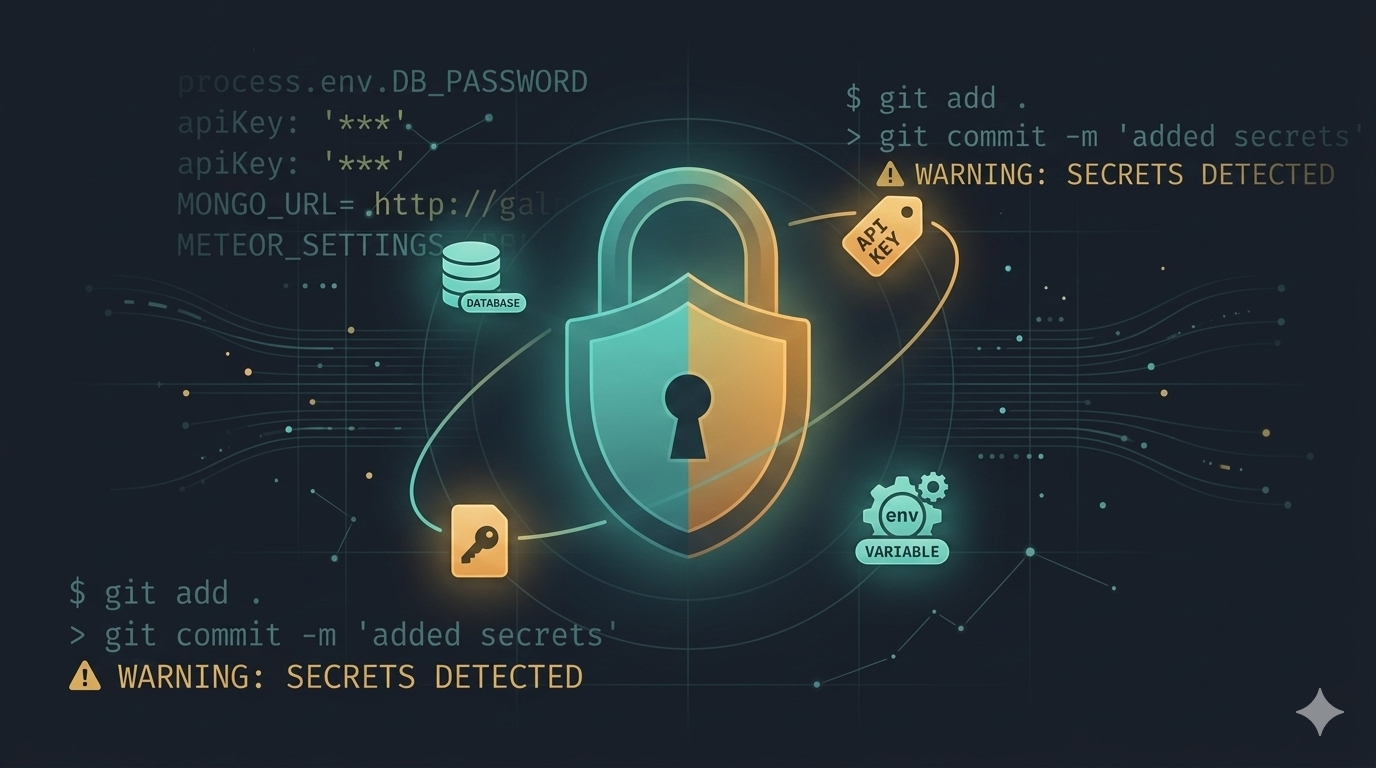
Picture this. A developer on your team wants to contribute to an open source project. They fork the company’s private repository to their personal GitHub account and accidentally set it as public. A few hours later, GitHub’s secret scanning sends you an alert: your MongoDB credentials and API tokens are now visible to everyone.
The fork gets deleted within minutes, but it’s already too late. Automated bots have scraped everything. You spend the next two days rotating credentials, checking access logs, and explaining how a simple mistake became a security incident.
This happens more often than you’d think. If you’ve worked with Meteor for a while, you’ve probably seen something like this. Maybe it happened to a colleague, maybe to an app you inherited, or maybe you’ve had a close call yourself.
The cause is almost always the same: secrets stored in the repository, waiting for something to go wrong. In this post, I want to share the approach we recommend for keeping your credentials safe when deploying Meteor apps to Galaxy.
How Secrets End Up Exposed
Repository Made Public by Mistake
A simple misconfiguration in GitHub, GitLab, or Bitbucket can turn a private repo public. It might happen during a reorganization, when transferring ownership, or just a misclick. Once public, bots index everything, including your secrets.
Public Forks
When someone forks a private repository to a public one, the entire commit history becomes visible. Even if your original repo stays private, the fork exposes everything that was ever committed.
Git History
Here’s what catches most people: deleting a file doesn’t remove it from Git history. If you committed settings.json three years ago and deleted it yesterday, it’s still there. Anyone with repo access can find it with a simple git log command.
Public Docker Images
Your Dockerfile copies the entire project directory into the image. If settings.json is there, it becomes part of every layer. Push that image to a public registry, even for a few minutes, and automated scanners will find it.
Any secret that touches your repository should be considered compromised. The only safe approach is to never commit secrets in the first place.
The Solution: External Secrets Management
Keep secrets out of your codebase entirely. Store them in a dedicated secrets manager and inject them only at deploy time.
For this guide, I’ll use Infisical. It’s open source, has a generous free tier, and the developer experience is really good. The same principles apply if you prefer Doppler, AWS Secrets Manager, or any other tool.
We’re going to set up:
- Secrets stored in Infisical, never in your repo
- A deploy script that pulls secrets and deploys to Galaxy
- Automatic cleanup so no secrets files stay on disk
- Separate environments for development, staging, and production
Setting Up Infisical
First, create an account at app.infisical.com and create a new project for your app.
Then install the Infisical CLI on your machine. You can find the installation instructions for your operating system in the official docs.
Once installed, log in and initialize your project:
# Login to Infisical (opens browser)
infisical login

# In your Meteor project directory
cd ~/projects/my-meteor-app
infisical initNow add your secrets to Infisical. You have two options:
Option A: Single SETTINGS_JSON variable (recommended)
Store your entire Meteor settings object as one JSON string. This is how Galaxy expects settings, and it keeps everything in one place:
{
  "galaxy.meteor.com": {
    "env": {
      "MONGO_URL": "mongodb+srv://user:pass@cluster/db",
      "MAIL_URL": "smtp://user:pass@smtp.provider.com:587"
    }
  },
  "private": {
    "stripeKey": "sk_live_xxx",
    "oauthSecret": "xxx"
  },
  "public": {
    "appName": "My App"
  }
}Option B: Individual secrets
Store each credential separately. This gives you more control over access permissions, but you’ll need to build the settings object at deploy time.
I prefer Option A for most projects. It’s simpler and matches how Meteor handles settings.
Cleaning Up Your Project
Before we set up deployment, let’s make sure your repository is clean.
Update your .gitignore
Add these entries so secrets files are never committed:
# Secret files - NEVER commit
settings.json
settings-*.json
.settings-*.json

# Infisical local config
.infisical.json

# Environment directories with secrets
env/Create a settings.example.json
Keep a template in your repo so developers know the expected structure:
{
  "galaxy.meteor.com": {
    "env": {
      "MONGO_URL": "YOUR_MONGO_URL",
      "MAIL_URL": "YOUR_MAIL_URL"
    }
  },
  "private": {
    "stripeKey": "YOUR_STRIPE_KEY"
  },
  "public": {
    "appName": "My App"
  }
}This file is safe to commit. It has no real secrets, just placeholders.
Remove existing secrets from Git history
If you’ve committed secrets before, removing them from current files isn’t enough. You may need tools like git filter-branch or BFG Repo-Cleaner to remove them from history. And either way, rotate any credentials that were ever committed.
The Deploy Script
Here’s a deploy script that pulls secrets from Infisical and deploys to Galaxy. Save this as deploy.sh in your project root:
#!/bin/bash
set -e

# Configuration - change these for your app
APP_NAME="my-app.meteorapp.com"
ENVIRONMENT="prod"

echo "Deploying $APP_NAME ($ENVIRONMENT)"

# Verify Infisical authentication
if ! infisical secrets --env=$ENVIRONMENT &> /dev/null; then
    echo "Not authenticated. Run: infisical login"
    exit 1
fi

# Export secrets to temporary file
TEMP_SETTINGS=".settings-deploy-$$.json"
infisical secrets get SETTINGS_JSON --env=$ENVIRONMENT --plain > $TEMP_SETTINGS

# Validate JSON
if ! python3 -c "import json; json.load(open('$TEMP_SETTINGS'))" 2>/dev/null; then
    echo "Invalid JSON in SETTINGS_JSON"
    rm -f $TEMP_SETTINGS
    exit 1
fi

# Deploy to Galaxy
meteor deploy $APP_NAME --settings $TEMP_SETTINGS

# Clean up
rm -f $TEMP_SETTINGS

echo "Done!"Make it executable:
chmod +x deploy.shNow deploying is as simple as:
./deploy.shThe script fetches your secrets, creates a temporary settings file, deploys to Galaxy, and removes the temporary file right after. Your secrets never stay on disk.
Local Development
For local development, you can use the same approach. Create a dev.sh script:
#!/bin/bash
set -e

# Fetch development secrets
infisical secrets get SETTINGS_JSON --env=dev --plain > .settings-local.json

# Run Meteor
meteor run --settings .settings-local.json

# Clean up when Meteor exits
rm -f .settings-local.jsonThis way, your development secrets also come from Infisical instead of a file sitting in your project directory.
Managing Multiple Environments
One benefit of using a secrets manager is easy environment separation. In Infisical, you can have different secrets for development, staging, and production.
To deploy to different environments, just change the parameters:
# Deploy to staging
ENVIRONMENT=staging APP_NAME=staging.myapp.com ./deploy.sh

# Deploy to production
ENVIRONMENT=prod APP_NAME=myapp.com ./deploy.shThis makes it impossible to accidentally deploy staging secrets to production. Each environment pulls from its own set of credentials.
A Few Security Tips
Rotate secrets regularly
Set a reminder to rotate credentials every 90 to 180 days. It’s not fun, but it limits the damage if something does leak.
Use least privilege access
Not everyone needs access to production secrets. Infisical lets you control who can access which environments. Use that.
Check access logs
Take a look at who’s accessing your secrets from time to time. Unexpected patterns might indicate a problem.
Don’t trust private repositories completely
Private repos can become public by accident. Treat any committed secret as potentially exposed.
Wrapping Up
Setting up proper secrets management takes about 30 minutes. That’s a small price compared to spending a weekend rotating every credential because someone found your settings.json on Docker Hub.
Let us know if you have questions or feedback in the comments.
Ready to try Galaxy? Start here →